
This release adds direct data connections to Excel Workbooks.
Update
To update, download and install the latest version from the product’s installation section.
Changes
-
Adds bidirectional data connections to Microsoft Excel Open XML (.xlsx) files with new Open Excel File, Create Excel File, and Close Excel File menus. Fields are transferred as plain text (any applied Rich Text formatting is ignored) so that formatting specified by the data descriptor (DD) or data link (like tagged text and price styling) work as usual.
If you’ve been using a data snapshot file, you’ll likely be able to use your current DD without any changes. Instead of first saving a delimited data snapshot from Excel and opening that with InCatalog, simply open the Excel Workbook directly and perform any updates as usual.
If your Workbook contains multiple worksheets, InCatalog will ask you which one to use while it’s being opened. To avoid having to choose each time, you can pre-select the target worksheet in your DD (see Simple Connections, below).
To use an Excel Workbook for interactive update (or just keep one open for multiple updates in either direction), you can choose InCatalog > Open Excel Workbook… to open an existing file or Create Excel Workbook… to create a new one (for extraction only). When you’re finished, use InCatalog > Close Excel Workbook.
Select Updateable from document in the Open Excel Workbook dialog if you want the Excel file to be updateable from the InDesign document. (This will lock the file to prevent competing edits while you’re working with it.)
To select an Excel file as a data source or destination, use the InCatalog > Select Data Source > Excel Workbook or the InCatalog > Select Data Destination > Excel Workbook menu.
InCatalog supports two types of Workbook connections: “simple,” for straightforward, data snapshot-like connections with a single worksheet, and “advanced,” for flexible, ODBC-like connections with named columns and multiple simultaneous tables/worksheets.
Simple Connections
A simple connection uses a snapshot-like DD, expects the data to be in a single worksheet, and requires the data to be in the same column order as the DD’s list of fields (meaning, column headers aren’t necessary). If the opened Workbook contains multiple worksheets, InCatalog asks you to select the sheet it should work with. Alternatively, the DD’s key field can pre-select the worksheet by employing the [D”worksheet”] qualifier, so you won’t be asked every time the Workbook is opened.
When exporting data from your document with InCatalog, it will always be in the field order given in the DD. If InCatalog creates a Workbook, it uses the key field’s [D”worksheet”] qualifier to name the default worksheet (which is otherwise named the usual “Sheet1”).
Here’s an example of a DD for a simple connection that pre-selects a “Summer Products” worksheet and expects the key field “SKU” to be in the sheet’s first column, field “retail price” in the sheet’s second column, and so on.
SKU[K D"Summer Products"] retail price[P] sale price[P] description[T]Advanced Connections
For more demanding situations, like when accessing multiple tables/worksheets by employing [D”worksheet”] qualifiers or using [F”column”] or [Y”key field worksheet”] qualifiers to select specific, named columns, InCatalog will match by column header instead of using DD field order.
To trigger an advanced connection, add a [F”column”] qualifier to any (non-key) field in your DD. At that point, column headers are required in each worksheet the DD accesses.
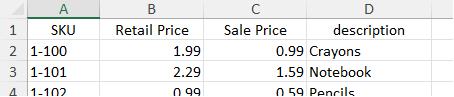
Also add a [F”column”] qualifier to any field whose DD name doesn’t match the worksheet’s column name.
To associate a DD field with a specific worksheet in the Workbook, add a [D”worksheet”] qualifier to its entry. A field that does not name its worksheet will be looked for in the key field’s worksheet (as given by its [D] qualifier or as chosen by the user when the Workbook was opened).
An Excel Workbook created by InCatalog from your document will contain the worksheets named by [D”worksheet] qualifiers and the column headers named by the DD’s field names or, if provided, their [F”column”] qualifiers.
Here’s an example of a DD for an advanced connection that accesses a workbook’s “Product List” and “Summer Pricing” worksheets ([D] qualifiers) and specifies a couple column names that differ from their fields’ names in the DD ([F] qualifiers). (Note that both worksheets must contain a key column named “SKU”.)
SKU[K D"Product List"] retail[P F"Retail Price" D"Summer Pricing"] sale[P F"Sale Price" D"Summer Pricing"] description[T D"Product List"] -
Adds scripting support for Excel Workbook connections.
Update Methods
All update methods return either the number of linked elements that were updated or a string containing the error log.
Methods on: Application, Document
// Update the contents of the document's link elements
// from one or more Excel Workbook worksheets.
updateDocumentUsingWorkbook(workbookFile[, worksheet,
    ddSet, dd, ddContents, ddMap,
    firstPage, lastPage, firstSpread, lastSpread, selectedGroup, selectedFrame,
    picturesIgnored, hiddenLayersIgnored, masterPagesIgnored,
    keyUpdating, documentDisplaySuppressed, fuzzyPictureLookup])

// Update/create the contents of one or more Excel Workbook
// worksheets from the document's linked elements' contents.
updateDataUsingWorkbook(workbookFile[, worksheet,
    ddSet, dd, ddContents, ddMap,
    firstPage, lastPage, firstSpread, lastSpread, selectedGroup, selectedFrame,
    picturesIgnored, hiddenLayersIgnored, masterPagesIgnored,
    picturePathLevels, recordCreation, posixPaths])
Methods on: Spread, Layer, Page, Group, PageItem, Table, Cell, TextFrame, TextColumn, Story, Text, Paragraph, Line, Word, Character, TextStyleRange, InsertionPoint
// Update the contents of the document's link elements
// from one or more Excel Workbook worksheets.
updateDocumentUsingWorkbook(workbookFile[, worksheet,
    ddSet, dd, ddContents, ddMap,
    firstPage, lastPage, firstSpread, lastSpread, selectedGroup, selectedFrame,
    picturesIgnored, hiddenLayersIgnored, masterPagesIgnored,
    keyUpdating, documentDisplaySuppressed, fuzzyPictureLookup])

// Update/create the contents of one or more Excel Workbook
// worksheets from the document's linked elements' contents.
updateDataUsingWorkbook(workbookFile[, worksheet,
    ddSet, dd, ddContents, ddMap,
    firstPage, lastPage, firstSpread, lastSpread, selectedGroup, selectedFrame,
    picturesIgnored, hiddenLayersIgnored, masterPagesIgnored,
    picturePathLevels, recordCreation, posixPaths])
Update Method Parameters
Name Type Description workbookFile File | string Required. The Excel Workbook file (.xlsx) to be imported, updated, or, if it doesn’t exist, created and filled. worksheet string | number Optional. Specifies the target worksheet within the Workbook as either a name or a 1-based position within the Workbook. Used only if the Workbook contains more than one worksheet and either the DD is simple (doesn’t use [F], [D] or [Y] qualifiers) or the DD doesn’t itself specify a worksheet with a [D] qualifier in its key field (default is position 1). (The complete InCatalog Automation Reference currently lives in the news notes for the 2.34 release.)
-
Fixes a problem introduced in the InCatalog 2.34 release in which a scripted update could fail and not report the error.